Marley Health - Diagnostic Report
Diagnostic Report helps to enter Observation Result easily. Diagnostic Report gets created on submission of Sales Invoice with Observation Template Items in Item table.
Introduced in version 15
To view Diagnostic Report, go to:
Home > Healthcare > Diagnostics > Diagnostic Report
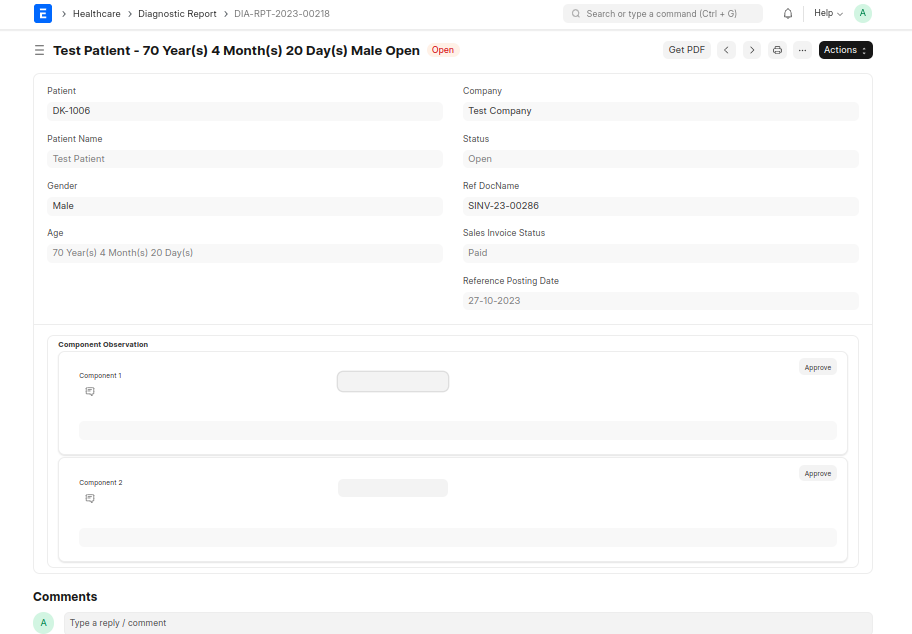
1. Working
- After entering the result save the Diagnostic Report (this will save the Observation with the results entered)
- To approve an Observation the Result needs to be saved and then click the Approve button.
- Observations can be Approved either individually or grouped from Diagnostic Report
- If all the observations are approved, the Diagnostic Report will be approved automatically.
2. Features
- Get PDF button will show a dialog where it will have options to select Print Format and Letter Head.
A print format for the Diagnostic Report will already be available.
2.1 Consumption
The report holds no consumables of its own, but approving from it issues its Observations' reagents. Approve All saves any results typed into the report. Then one review lists every reagent the approval will issue, across all Observations and their components.
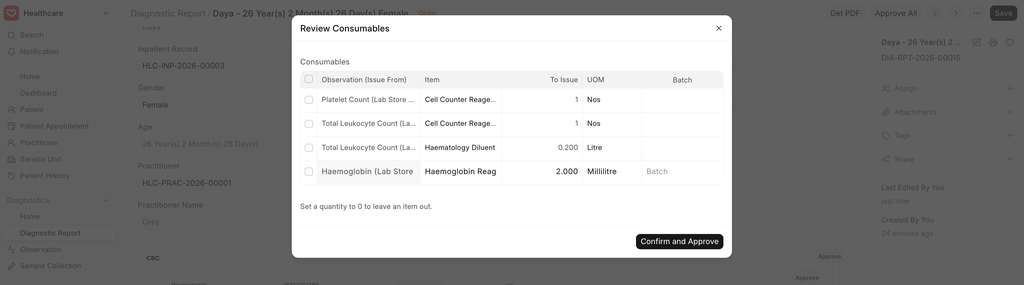
Each one comes from its own Observation's warehouse. Confirm and Approve saves any edits and approves. Approving a single result works the same way: a typed result is saved first, then that result's review is shown. When nothing would be issued, a plain confirmation is shown instead. Reject All asks whether the tests will be repeated: repeated tests issue their reagents again when re-approved, and corrections don't. Approving or rejecting through a workflow action can't show the review, so a workflow approval issues without one, and a workflow rejection is always treated as a correction.